

Yesterday we got started on our basic canvas course. Thinking about the project I want to do, I need to export the canvas as an image.
So how do we convert the canvas to an image?
There are actually two ways of doing this, and we will explore both.
See the end result on this Codepen.
1. Right-click to save
Everyone knows this option, but we can just right-click to save on the canvas.
This will only work in certain browsers, so it's not the most valid way of saving it.
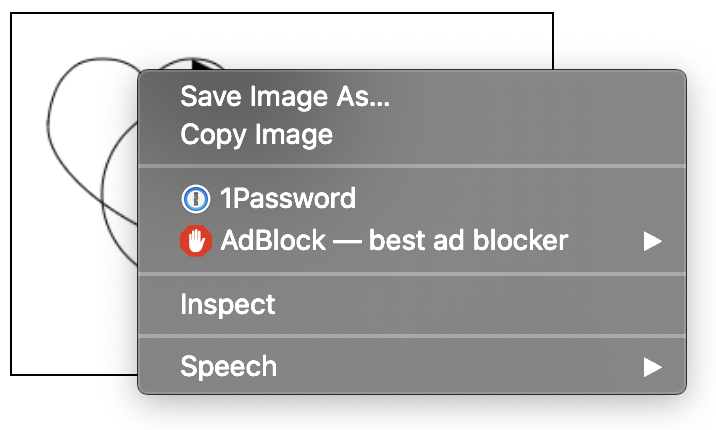
Note: Keep in mind the canvas has no background!
2. Adding a download button
The other option is to add a download button to our page. This download button will then export the canvas content en open the base64 image in another tab.
Adding the button:
<canvas id="canvas" height="200"></canvas>
<br />
<button id="download">Download</button>
Now let's add the button variable to our JavaScript
const download = document.getElementById('download');
Awesome, now we need to add a eventListener to it and listen to the click command.
download.addEventListener('click', function(e) {
  var link = document.createElement('a');
  link.download = 'download.png';
  link.href = canvas.toDataURL()
  link.click();
  link.delete;
});
We create a temporary ahref on which we will place the canvas's data url and then click it.
We are using the toDataURL function which returns a base64 string that looks something like this:
// "data:image/png;base64,iVBORw0KGgoAAAANSUhEUgAAAAUAAAAFCAYAAACNby
// blAAAADElEQVQImWNgoBMAAABpAAFEI8ARAAAAAElFTkSuQmCC"
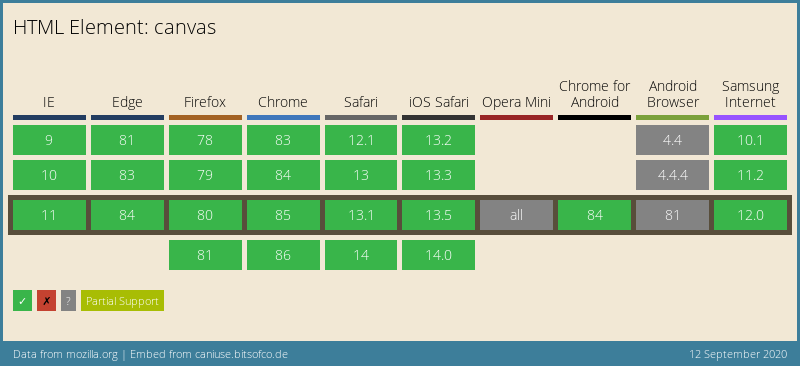
Browser Support
The canvas element is well supported these days and is defiantly a good option if you want to draw vectors on screen.
Thank you for reading, and let's connect!
Thank you for reading my blog. Feel free to subscribe to my email newsletter and connect on Facebook or Twitter
About the author
I'm a full-stack developer from South Africa 🇿🇦. I love writing about JavaScript, HTML and CSS.
Comments
Join the discussionThank you Chris. It was helpful.
Thanks Damilare, glad you like it!
Canvas explorations 🖼
In this series we will get started with the canvas element and use JavaScript to make some amazing art.



