
Vanilla JavaScript canvas images to black and white

Yesterday, we saw how to use images on our canvas and even invert the colours.
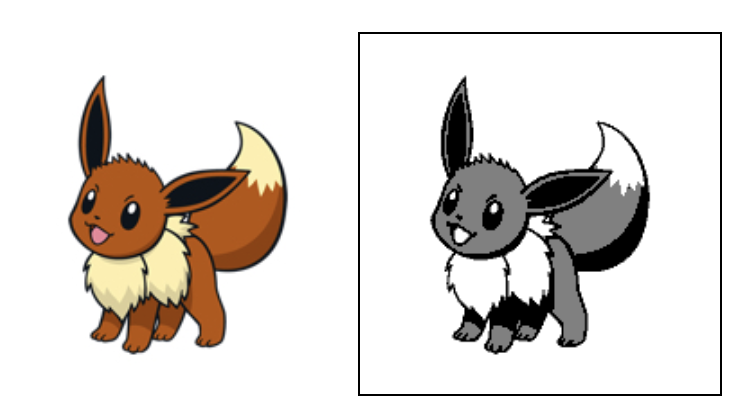
But what if we want to convert them to only three colour options?
The colour options we will be using are;
- black
- white
- grey (only 1 type!)
This will abstract our image and teaches us how to create grayscale images manually.
Today's end result will look like this:
JavaScript
As you could see in yesterday's article as well, we are using the getImageData function.
const img = document.getElementById("eeveelutions");
const canvas = document.getElementById("canvas");
const ctx = canvas.getContext("2d");

img.onload = function () {
  ctx.drawImage(img, 0, 0);
  const imgData = ctx.getImageData(0, 0, canvas.width, canvas.height);
  // Code comes here
};
This returns rgba values so as yesterday we need to loop over every 4th child.
for (i = 0; i < imgData.data.length; i += 4) {

}
Ok, so now what we get 4-pixel values, being rgba.
The alpha we won't use, but we want to get one combined value for the rgb.
Let's add up the three values for red green and blue.
let count = imgData.data[i] + imgData.data[i + 1] + imgData.data[i + 2];
This will give us a pixel number between 0 (black) and 765 (white).
In our case, we also add one grayscale layer, so we get the following three calculations:
- 0-255 = black
- 256-510 = gray
- 511-765 = white
That being said we can have the following code:
let colour = 0;
if (count > 510) colour = 255;
else if (count > 255) colour = 127.5;
Here we defined our default colour to be black (0), our white (255) and our gray (127.5)
We can then append our colour to the first three values of the pixel, and 255 to our alpha layer.
imgData.data[i] = colour;
imgData.data[i + 1] = colour;
imgData.data[i + 2] = colour;
imgData.data[i + 3] = 255;
Then we need to put the data back to our canvas.
ctx.putImageData(imgData, 0, 0);
There we go, we just converted our image into three colours!
Have a play around on this Codepen.
Moving to full black & white
We can even make it pure black and white by using the following calculations:
- black = 0 - 382
- white = 383 - 765
And it will result in the following loop:
for (i = 0; i < imgData.data.length; i += 4) {
    let count = imgData.data[i] + imgData.data[i + 1] + imgData.data[i + 2];
    let colour = 0;
    if (count > 383) colour = 255;

    imgData.data[i] = colour;
    imgData.data[i + 1] = colour;
    imgData.data[i + 2] = colour;
    imgData.data[i + 3] = 255;
}
Find this example on the following Codepen.
Browser Support
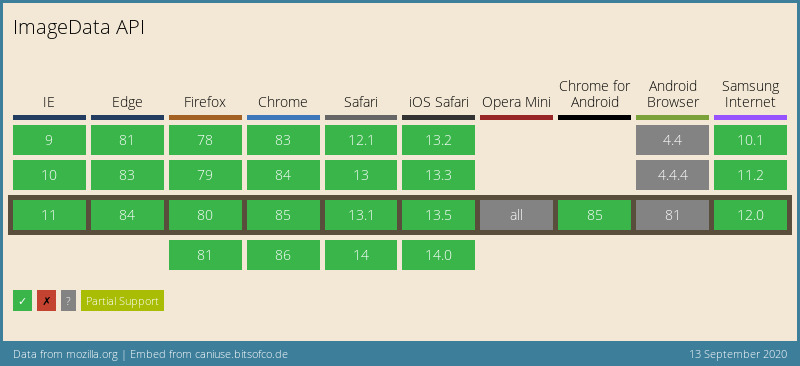
The imageData API, as well as canvas, have very good support!
Thank you for reading, and let's connect!
Thank you for reading my blog. Feel free to subscribe to my email newsletter and connect on Facebook or Twitter
About the author
I'm a full-stack developer from South Africa 🇿🇦. I love writing about JavaScript, HTML and CSS.
Comments
Join the discussionAwesome glad you find them useful 🔥
Love this, thanks for sharing!
My pleasure, love exploring the canvas, that alone could be a blog haha.
Canvas explorations 🖼
In this series we will get started with the canvas element and use JavaScript to make some amazing art.



