
Running multiple frameworks in Astro

In the previous article, we looked at adding React to an Astro 1.0 project. Today we'll look at how we can run multiple frameworks simultaneously in Astro.
This is a real superpower as we are free to mix and match frameworks.
Let's take the previous article as our starting point. Get the branch from GitHub
You can technically choose any framework. I'll be using Vue for this case.
Adding a second framework to Astro
The first thing we'll have to do is install the new framework. For Vue, we can run the following command.
npm run astro add vue
Once done, you should see React and Vue setup in your astro.config.mjs file.
import { defineConfig } from 'astro/config';
import react from '@astrojs/react';
import vue from '@astrojs/vue';

export default defineConfig({
  integrations: [react(), vue()],
});
Now we can add a new Vue component to our src/components directory.
I'll call this file Vue.vue (super original).
<script>
export default {
  data() {
    return {
      count: 0,
      name: 'Vue',
    };
  },
};
</script>

<template>
  <button @click="count--">-</button>
  <pre>{{ count }}</pre>
  <button @click="count++">+</button>
  <p>I'm a {{ name }} component</p>
</template>
This is a basic counter we made for the React component. And then, we response with what language this specific component is in.
Now we can try and add this component to our index.astro page.
---
import React from '../components/React.jsx';
import Vue from '../components/Vue.vue';
---
<html lang="en">
    <head>
        <meta charset="utf-8" />
        <link rel="icon" type="image/svg+xml" href="/favicon.svg" />
        <meta name="viewport" content="width=device-width" />
        <meta name="generator" content={Astro.generator} />
        <title>Astro</title>
    </head>
    <body>
        <React client:load />
        <hr />
        <Vue client:load />
    </body>
</html>
As you can see, we decided to hydrate this on client:load so the counter will work.
Read more about hydration (Scroll down a little bit).
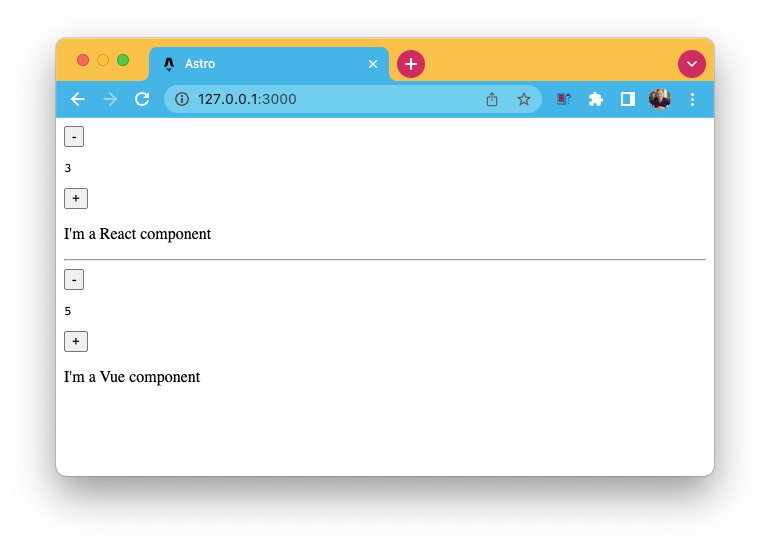
If we now run our application, we should see both components active and working.
You can also find today's code in this GitHub repo.
Thank you for reading, and let's connect!
Thank you for reading my blog. Feel free to subscribe to my email newsletter and connect on Facebook or Twitter
About the author
I'm a full-stack developer from South Africa 🇿🇦. I love writing about JavaScript, HTML and CSS.
Comments
Join the discussionNo comments yet. Be the first to comment.



