
CSS custom numbered list styling

The other day we made an emoji list. And I wanted to include another powerful CSS property called CSS Counters.
This is the end result in Codepen.
What are CSS Counters?
They are variables controlled by CSS, whose values can increment by certain CSS rules.
We can use the following properties in CSS.
content-> Used to place thecounter()property.counter-reset-> Creates or resets an countercounter-increment-> Increment a specific countercounter()-> Adds the value to an element
HTML Structure
Let's create a very simple example using two lists, we want each list to re-start the counter.
<div>
  <ol>
    <li>Item #1</li>
    <li>Item #2</li>
    <li>Item #3</li>
    <li>Item #4</li>
    <li>Item #5</li>
  </ol>
</div>
<div>
  <ol>
    <li>Item #1</li>
    <li>Item #2</li>
    <li>Item #3</li>
    <li>Item #4</li>
    <li>Item #5</li>
  </ol>
</div>
CSS counter styling
So how do we now use CSS counters?
Let's start with the <ol> element.
ol {
  counter-reset: custom;
  list-style-type: none;
  padding: 0;
  margin: 0px 20px;
}
We start by resetting the list counter called custom.
Then we remove the default list-style since we are going to add this custom one.
Now we can move on to the <li> styling.
ol li {
  counter-increment: custom;
  padding: 15px 0;
  display: flex;
  align-items: center;
}
Here we increment the custom counter and add some basic padding and alignment.
Now we need to actually use this counter in a before pseudo element.
ol li:before {
  content: counters(custom,".") " ";
  width: 30px;
  height: 30px;
  margin-right: 10px;
  background: purple;
  color: #fff;
  border-radius: 50%;
  display: flex;
  align-items: center;
  justify-content: center;
}
As you can see, we place our custom counter in the content element. We then add some basic styling to make it look a little bit nicer.
I'm using a lot of flex options to style everything centered.
Some amazing examples
Now that you have seen my introduction check what these amazing people made with this cool CSS property.
Check this cool gradient one made by Mattia Astorino
Or this section layout one made by Jonathan Snook
Or even this absurdly good Tic-Tac-Toe with counters by Sαwsαn
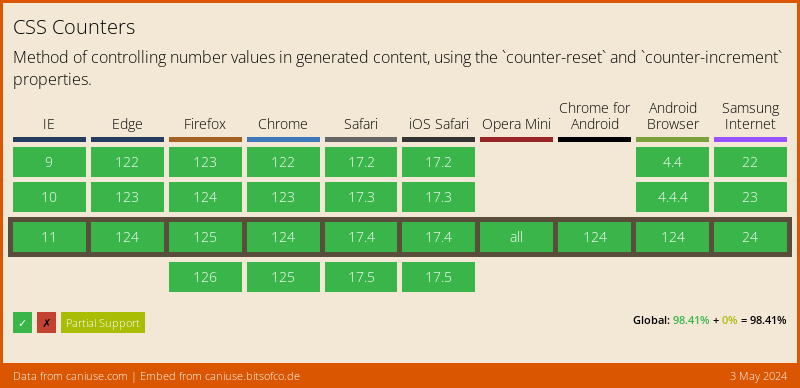
Browser Support
And the good news?
CSS Counters are fully supported! 🎉
Thank you for reading, and let's connect!
Thank you for reading my blog. Feel free to subscribe to my email newsletter and connect on Facebook or Twitter
About the author
I'm a full-stack developer from South Africa 🇿🇦. I love writing about JavaScript, HTML and CSS.
Comments
Join the discussionNo comments yet. Be the first to comment.



