# CSS custom numbered list styling
The other day we made an [emoji list](https://daily-dev-tips.com/posts/css-emoji-list-style/). And I wanted to include another powerful `CSS` property called `CSS` Counters.
This is the end result in Codepen.
%[https://codepen.io/rebelchris/pen/OJXEMJd]
## What are CSS Counters?
They are variables controlled by `CSS`, whose values can increment by certain `CSS` rules.
We can use the following properties in `CSS`.
- `content` -> Used to place the `counter()` property.
- `counter-reset` -> Creates or resets an counter
- `counter-increment` -> Increment a specific counter
- `counter()` -> Adds the value to an element
## HTML Structure
Let's create a very simple example using two lists, we want each list to re-start the counter.
```html
- Item #1
- Item #2
- Item #3
- Item #4
- Item #5
- Item #1
- Item #2
- Item #3
- Item #4
- Item #5
```
## CSS counter styling
So how do we now use `CSS` counters?
Let's start with the `` element.
```css
ol {
counter-reset: custom;
list-style-type: none;
padding: 0;
margin: 0px 20px;
}
```
We start by resetting the list counter called `custom`.
Then we remove the default list-style since we are going to add this custom one.
Now we can move on to the `- ` styling.
```css
ol li {
counter-increment: custom;
padding: 15px 0;
display: flex;
align-items: center;
}
```
Here we increment the custom counter and add some basic padding and alignment.
Now we need to actually use this counter in a [`before` pseudo element](https://daily-dev-tips.com/posts/css-pseudo-elements/).
```css
ol li:before {
content: counters(custom,".") " ";
width: 30px;
height: 30px;
margin-right: 10px;
background: purple;
color: #fff;
border-radius: 50%;
display: flex;
align-items: center;
justify-content: center;
}
```
As you can see, we place our custom counter in the content element.
We then add some basic styling to make it look a little bit nicer.
I'm using a lot of [flex options to style everything centered](https://daily-dev-tips.com/posts/css-flexbox-most-easy-center-vertical-and-horizontal/).
## Some amazing examples
Now that you have seen my introduction check what these amazing people made with this cool `CSS` property.
Check this cool gradient one made by [Mattia Astorino](https://twitter.com/equinusocio)
%[https://codepen.io/equinusocio/pen/OqpBKJ]
Or this section layout one made by [Jonathan Snook](https://twitter.com/snookca)
%[https://codepen.io/snookca/pen/qYoLaq]
Or even this absurdly good Tic-Tac-Toe with counters by [Sαwsαn](https://twitter.com/saawsann)
%[https://codepen.io/saawsan/pen/wpXGWQ]
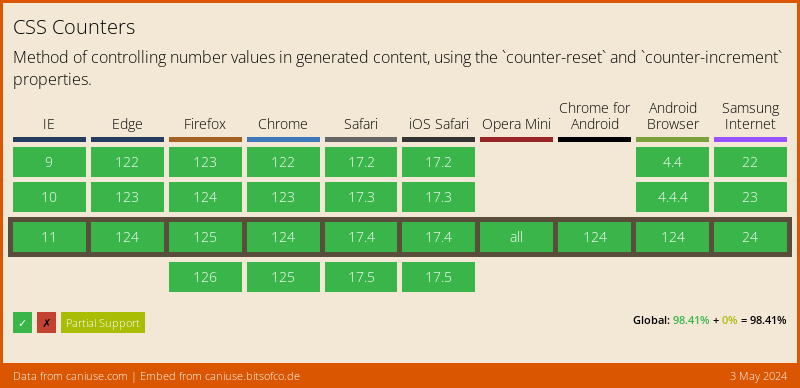
## Browser Support
And the good news?
CSS Counters are fully supported! 🎉
### Thank you for reading, and let's connect!
Thank you for reading my blog. Feel free to subscribe to my email newsletter and connect on [Facebook](https://www.facebook.com/DailyDevTipsBlog) or [Twitter](https://twitter.com/DailyDevTips1)