
SVG Sprites

The other day we looked at using SVG Fontawesome icons, and this method of using an SVG Sprite can be used in more ways!
So let's dive deeper into using SVG Sprites.
From the oldskool terms, a sprite is one image that includes multiple images; we then define which area resembles which icon and can use it in such away.
Defining our SVG Sprite
To define our sprite we start by defining a inline SVG at the top of our document
<body>
  <svg
    aria-hidden="true"
    style="position: absolute; width: 0; height: 0; overflow: hidden;"
    version="1.1"
    xmlns="http://www.w3.org/2000/svg"
    xmlns:xlink="http://www.w3.org/1999/xlink"
  >
    <defs>
      <symbol id="chevron" viewBox="1 1 7.5 12.2">
        <path
          d="M8.2 7.8l-5 5.1c-.2.2-.4.3-.7.3s-.5-.1-.7-.3l-.6-.6c-.1-.2-.2-.4-.2-.7 0-.3.1-.5.3-.7L5 7.1 1.3 3.3c-.2-.2-.3-.4-.3-.7 0-.3.1-.5.3-.7l.6-.6c.1-.2.4-.3.7-.3.3 0 .5.1.7.3l5 5.1c.2.2.3.4.3.7-.1.3-.2.5-.4.7"
        />
      </symbol>
      <symbol id="check" viewBox="1 1 15.6 11.9">
        <path
          d="M16.3 4l-8.6 8.6c-.2.2-.4.3-.7.3-.3 0-.5-.1-.7-.3l-5-5C1.1 7.5 1 7.2 1 7c0-.3.1-.5.3-.7l1.4-1.4c.2-.2.4-.3.7-.3.3 0 .5.1.7.3l3 3 6.6-6.6c0-.2.3-.3.5-.3.3 0 .5.1.7.3l1.4 1.4c.2.2.3.4.3.7 0 .2-.1.4-.3.6"
        />
      </symbol>
      <!-- etc -->
    </defs>
  </svg>
</body>
Inside the SVG we have a defs element which in turn includes the symbols. Inside each symbol we have the code for the actual SVG, we can get this code from illustrator or online tools as icomoon.
We made the SVG "invisible" by giving it no height and width.
Using the Defined SVG Sprite Icons
To actually use the icons we can use a code as follows:
<svg aria-hidden="true" focusable="false" class="icon icon-chevron">
  <use xlink:href="#chevron" />
</svg>
<svg aria-hidden="true" focusable="false" class="icon icon-check">
  <use xlink:href="#check" />
</svg>
We define another SVG area, where we can add a specific class if needed. And then make use of the use element and Xlink to the icon ID defined in the symbol.
Then we can style the icons as such:
.icon {
  max-width: 50px;
  max-height: 50px;
  &-check {
    fill: #caffbf;
  }
  &-chevron {
    fill: #9bf6ff;
  }
}
This will turn into the following Codepen.
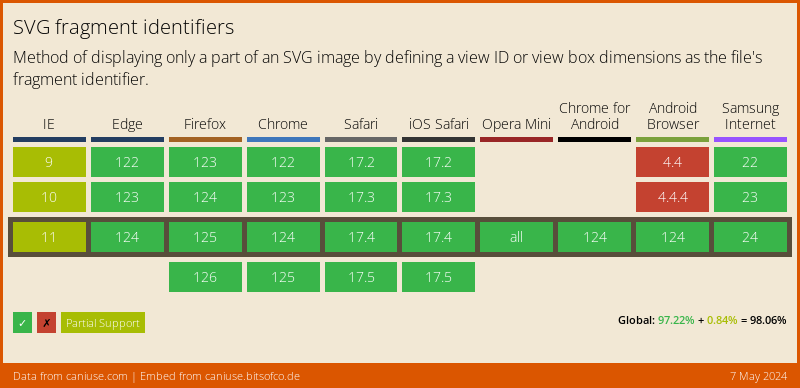
Browser Support
The support is pretty strong!
Thank you for reading, and let's connect!
Thank you for reading my blog. Feel free to subscribe to my email newsletter and connect on Facebook or Twitter
About the author
I'm a full-stack developer from South Africa 🇿🇦. I love writing about JavaScript, HTML and CSS.
Comments
Join the discussionNo comments yet. Be the first to comment.



