
Storybook - Structuring and naming

In our previous examples, you might have spotted that the test button component always gets added to the root of the Storybook structure.
In this article, I want to dive deeper into how you can organize and structure your components.
This means we'll look at giving them appropriate subcategories and even more explicit names.
Adding structure to the hierarchy
The first thing we want to look at is the structural hierarchy. Our button shows up at the root, compared to the other samples with an "example" category.
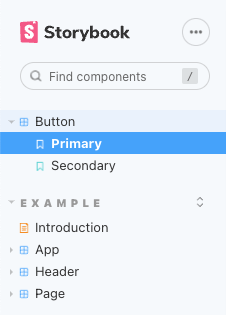
We can give the component story a better title split by / as the separator like this:
export default {
  title: 'Components/Global/Button',
  component: Button,
};
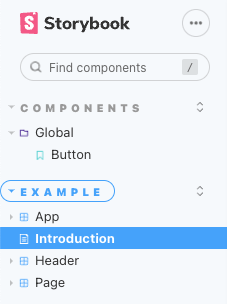
With this setup, our Storybook will now look like this:
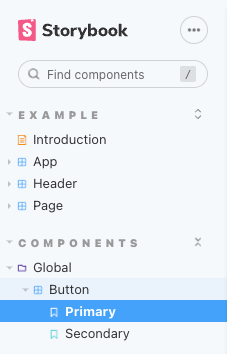
Note: You can go as far as you like with the hierarchy here.
Exporting only one story
What happens when you only have one story in the file? You can choose to export that in one go like this.
export const Button = (args) => <ButtonComponent {...args} />;
This way, our story will be called the Button, only showing this version.
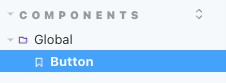
This can be super useful if you only have one state for a component.
Sorting stories
There is also the option to sort your stories.
Everything related will happen in the .storybook/preview.js file.
We can provide a custom sorting method like this in the most basic option.
export const parameters = {
  options: {
    storySort: (a, b) =>
      a[1].kind === b[1].kind
        ? 0
        : a[1].id.localeCompare(b[1].id, undefined, { numeric: true }),
  },
};
However, we have some cool options to work with that might help you better.
The basic configuration for sorting looks like this.
export const parameters = {
  options: {
    storySort: {
      method: '',
      order: [],
      locales: '',
    },
  },
};
The method can be alphabetical, for example.
However, we are more interested in the order. We can provide an array of strings in which they should appear.
Take the example we have so far. We got "Example", then "Components". If we wish to switch those around, we can provide an array as such:
export const parameters = {
  options: {
    storySort: {
      order: ['Components', 'Example'],
    },
  },
};
This will now show the Components first.
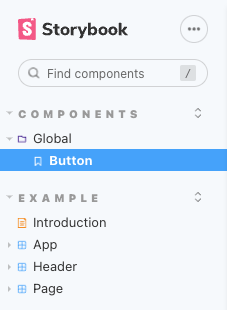
You don't have to explicitly mention all categories, just the ones you wish to order. Using a wildcard like this, you can also say which one to always end with.
export const parameters = {
  options: {
    storySort: {
      order: ['Components', 'Example', '*', 'WIP'],
    },
  },
};
This will show:
- Components
- Example
- All other components
- WIP
In some cases, you might also want to sort subcategories, for which we can use a subarray. Let's say "Example" has multiple categories. We can sort them as such:
export const parameters = {
  options: {
    storySort: {
      order: ['Components', 'Example', ['App', 'Introduction'], '*', 'WIP'],
    },
  },
};
You will see now we switched App and Introduction around.
Thank you for reading, and let's connect!
Thank you for reading my blog. Feel free to subscribe to my email newsletter and connect on Facebook or Twitter
About the author
I'm a full-stack developer from South Africa 🇿🇦. I love writing about JavaScript, HTML and CSS.
Comments
Join the discussionNo comments yet. Be the first to comment.



