

Now that we created the TurboReader browser extension, I wanted to see what's involved in actually getting it in the stores.
I decided to only ship it to the Chrome store for now. In future articles, I might go into the other stores as well.
Submitting a browser extension to the Chrome store
The first step is to navigate to the Chrome web store developer portal. This is where you'll manage your extensions.
Visit the Chrome Web Store portal
If you don't have an account, you'll be asked to create one here. You'll need to pay the 5$ (one-time) registration fee.
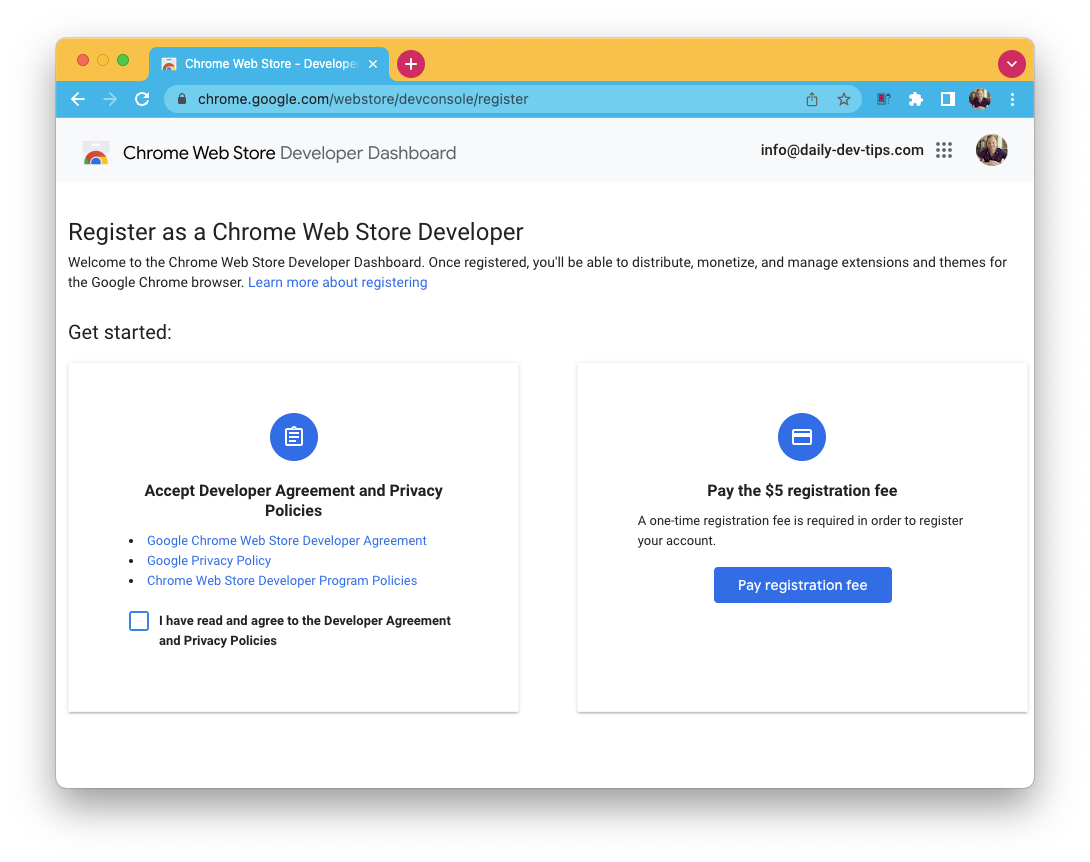
Once logged in and registered for the portal, you'll be asked to complete your profile. This could entail several questions. The portal gives excellent feedback on what you might be missing.
After that, you'll be able to add a new item. Click on the items tab in the left sidebar and click on a new item.
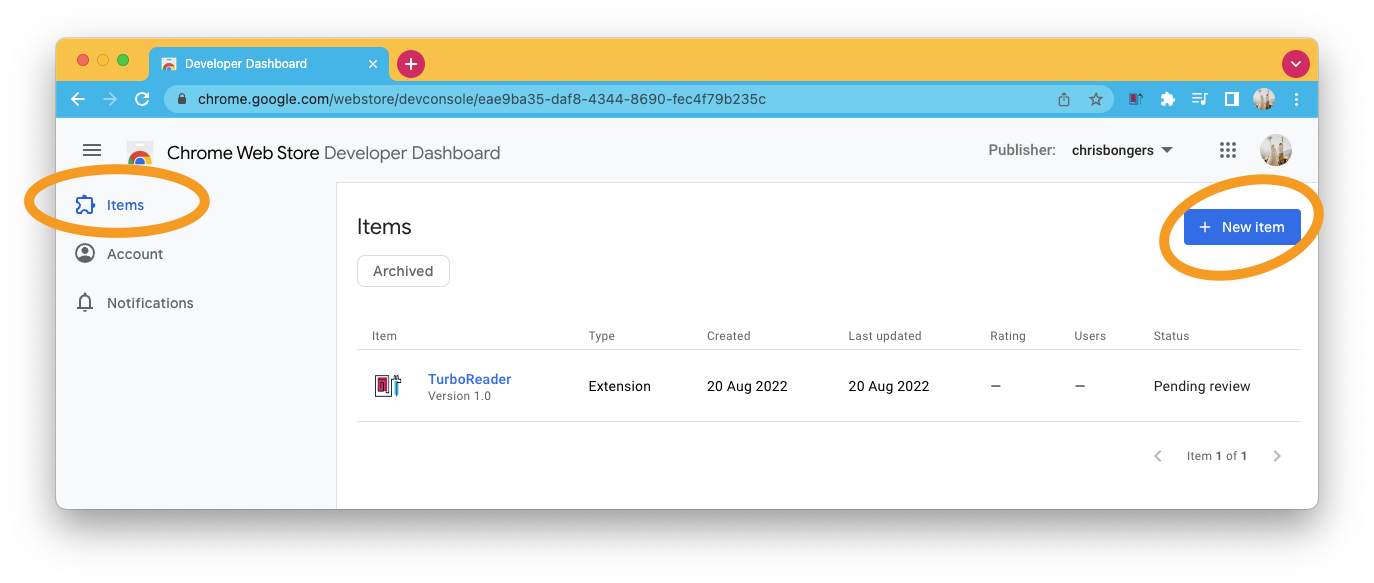
You'll see a popup where you need to submit a zip file of your project. Go ahead and zip your whole extension directory. The portal will now verify your zip and ensure the manifest is alright.
Once done, you'll enter the detail item view, and you'll have to fill out some required fields:
- Description: describe what your extension does
- Category: pick one that matches
- Language: the primary language of your extension
- Store icon: a 128x128 pixel version of your icon
- Screenshot: minimum of one screenshot in 1280x800 or 640x400 pixels
Then on the Privacy tab, you'll have another set of required fields:
- Single purpose: Shorter description
- Permissions: You need to describe why your extension needs specific permissions
- Data usage: Describe if your app uses any of the data of end-users
If unsure which field you might be missing, click on the "Why can't I submit" link at the top. This will tell you what's missing.
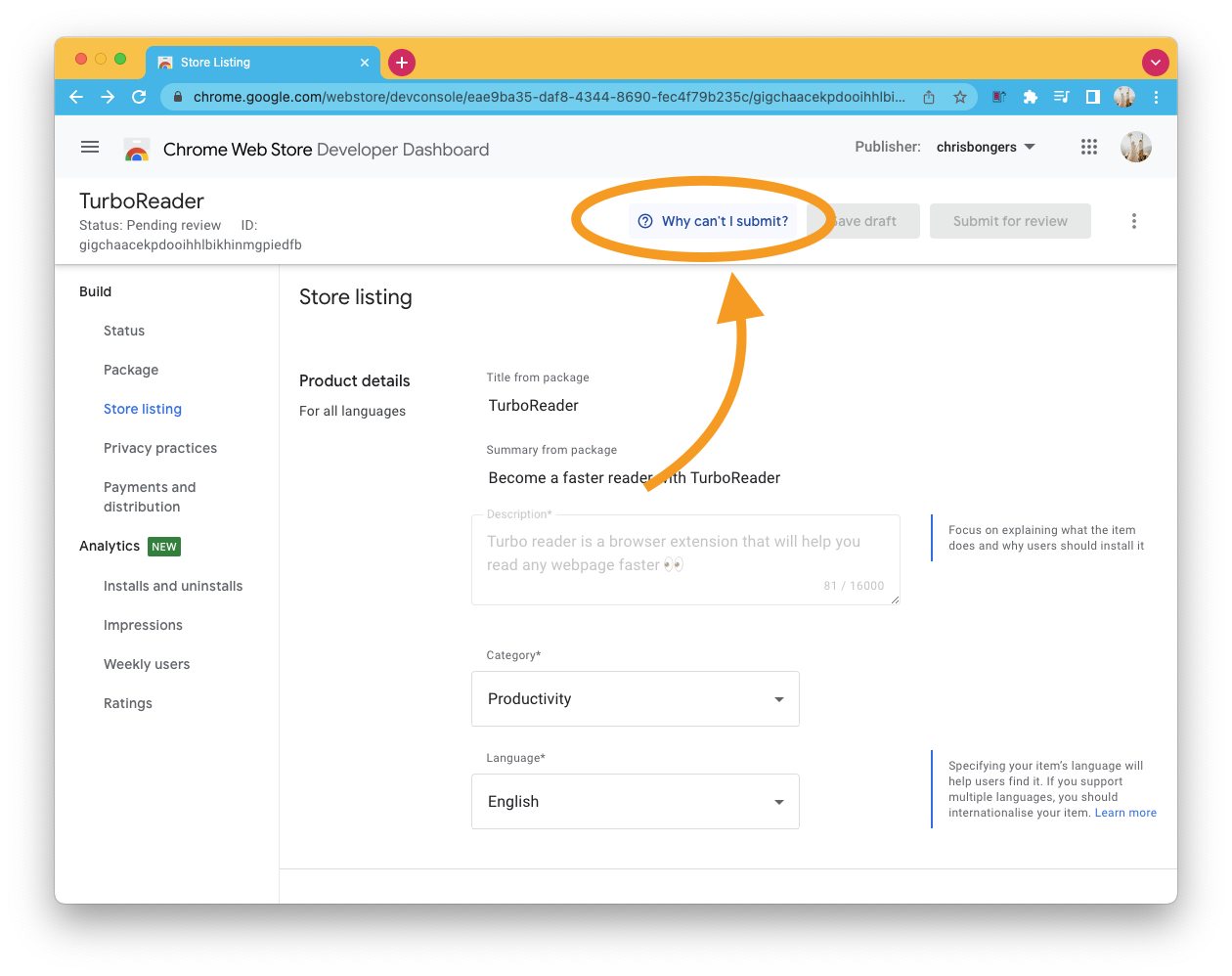
Once you have all fields, click the "Submit for review" button on the top.
It will notify you that the submission is on its way.
Do note it can take quite some time, especially if this is your first submission. The Chrome team might also reject your app, listen carefully to their response and adjust accordingly.
And that's it. You now have your first extension in the Chrome store.
Checkout TurboReader in the Chrome store.
Thank you for reading, and let's connect!
Thank you for reading my blog. Feel free to subscribe to my email newsletter and connect on Facebook or Twitter
About the author
I'm a full-stack developer from South Africa 🇿🇦. I love writing about JavaScript, HTML and CSS.
Comments
Join the discussionNo comments yet. Be the first to comment.



