
JavaScript detecting which key is pressed

You might find yourself in a situation where certain keypresses might do something for your application or game.
Today we'll be looking at how we can detect which key is pressed in JavaScript.
The end result is this cool little playground:
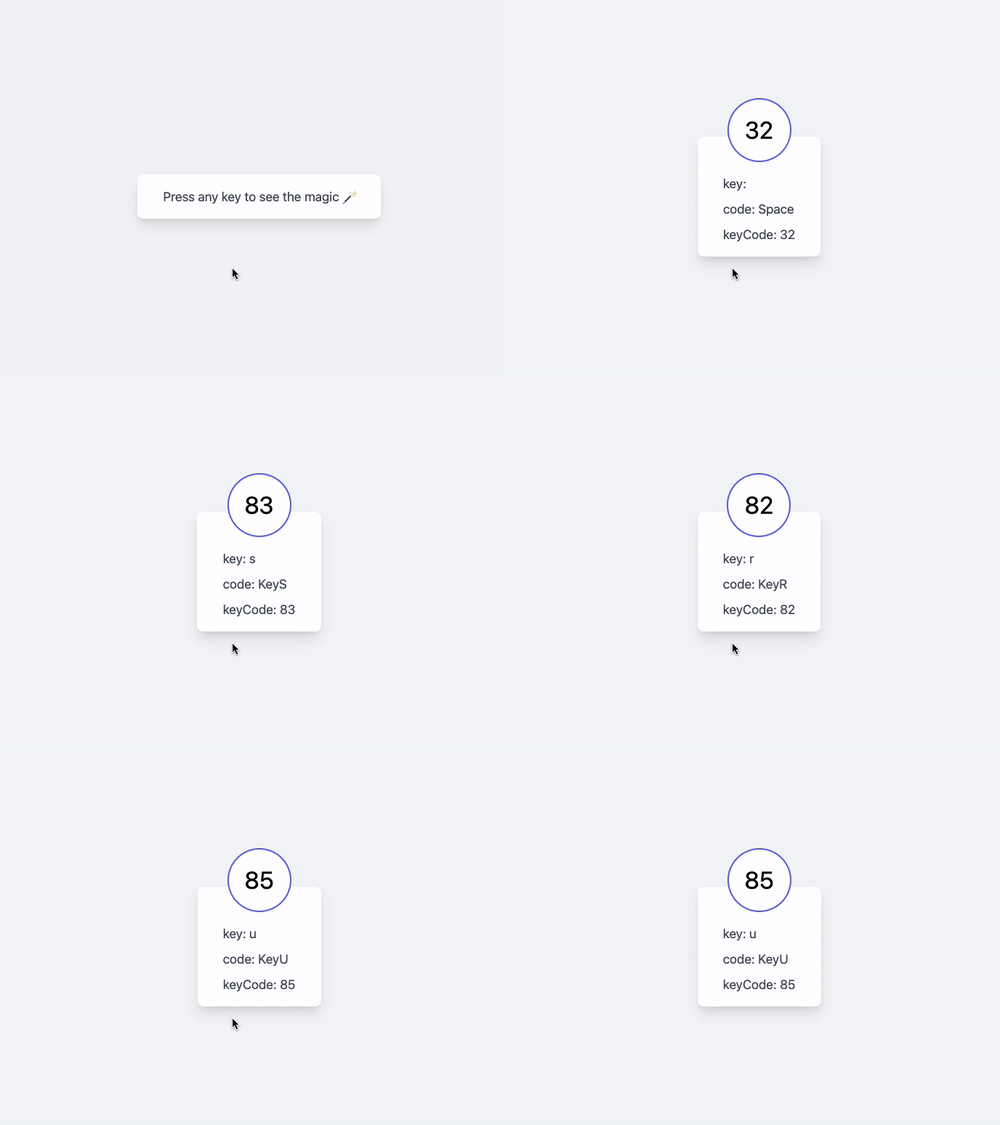
Detecting keys in JavaScript
Let's start with the basics. We will need a way for JavaScript to be aware any key is pressed.
document.onkeydown = function(e) {
  console.log('key down');
  console.log(e);
};
This will log all key down events, which is what we are looking for.
The e variable will contain the actual KeyBoardEvent, and it has quite the information inside.
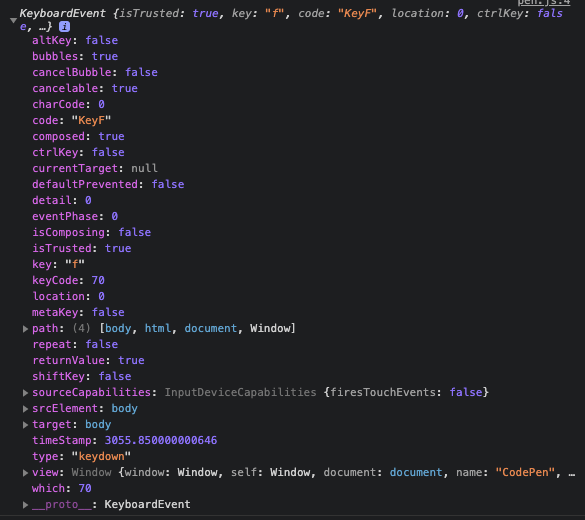
There are a couple things we can use that are helpful in there.
- key: A string representation of the key pressed
- keyCode: The number associated with the key. This is mainly used to identify keys in code
- code: A combination to identify which side a key was pressed (leftMeta/rightMeta)
Knowing that, let's make a cool visual tool that will output these three elements for the user.
HTML Structure
I'm going to be using Tailwind to make a quick styled application, the main setup will be:
<body class="my-auto mx-auto bg-gray-100">
  <div class="max-w-md py-4 px-8 bg-white shadow-lg rounded-lg my-20">
    <div class="flex justify-center -mt-16 hidden">
      <div
        class="w-20 h-20 object-cover rounded-full border-2 border-indigo-500 flex items-center justify-center bg-white text-3xl"
        id="keyCodeLarge"
      ></div>
    </div>
    <div>
      <p class="text-gray-600" id="info">
        Press any key to see the magic 🪄
      </p>
      <p class="mt-4 text-gray-600 hidden">key: <span id="key"></span></p>
      <p class="mt-2 text-gray-600 hidden">code: <span id="code"></span></p>
      <p class="mt-2 text-gray-600 hidden">keyCode: <span id="keyCode"></span></p>
    </div>
  </div>
</body>
As you might have noted, I've added some ids based on which we will add the represented value with JavaScript.
I've also added an information paragraph for when we don't have any keypress yet.
Assigning the keypress to our front-end
We start by defining the variables we are going to be needing.
const key = document.getElementById('key'),
  code = document.getElementById('code'),
  keyCode = document.getElementById('keyCode'),
  keyCodeLarge = document.getElementById('keyCodeLarge'),
  info = document.getElementById('info'),
  hiddenElements = document.querySelectorAll('.hidden');
This is a mix of the key information we will place and the hidden fields we need to show.
Now in our keyDown function, we can act on this and place the right information.
document.onkeydown = function(e) {
  [].forEach.call(hiddenElements, function(el) {
    el.classList.remove('hidden');
  });
  info.classList.add('hidden');
  key.innerHTML = e.key;
  code.innerHTML = e.code;
  keyCode.innerHTML = e.keyCode;
  keyCodeLarge.innerHTML = e.keyCode;
};
That is as simple as it gets!
You can try it out in this Codepen.
Thank you for reading, and let's connect!
Thank you for reading my blog. Feel free to subscribe to my email newsletter and connect on Facebook or Twitter
About the author
I'm a full-stack developer from South Africa 🇿🇦. I love writing about JavaScript, HTML and CSS.
Comments
Join the discussionNo comments yet. Be the first to comment.



