
Ionic tab bar circle middle button

Today I'll be showing you how to make a circle middle button inside a tab bar.
It's a way to make a button stand out more from the tab bar, and it can be your center of attention inside your app.
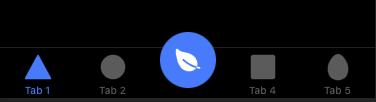
Circle middle tab bar button
We won't be making everything from scratch, so if you plan to work with me on this article, download the Ionic tab bar starter from GitHub.
From there, open up the project in your editor of choice. If we then run the application, we will get a basic tab bar, and we will focus on changing this tab bar.

Open up the tabs/tabs.page.html file.
For our example, we will make five buttons in our tab bar. The middle one will be outstanding.
Let's start by adding the five buttons and make the middle one an empty one.
<ion-tabs>
  <ion-tab-bar slot="bottom">
    <ion-tab-button tab="tab1">
      <ion-icon name="triangle"></ion-icon>
      <ion-label>Tab 1</ion-label>
    </ion-tab-button>

    <ion-tab-button tab="tab2">
      <ion-icon name="ellipse"></ion-icon>
      <ion-label>Tab 2</ion-label>
    </ion-tab-button>

    <ion-tab-button></ion-tab-button>

    <ion-tab-button tab="tab3">
      <ion-icon name="square"></ion-icon>
      <ion-label>Tab 4</ion-label>
    </ion-tab-button>

    <ion-tab-button tab="tab3">
      <ion-icon name="egg"></ion-icon>
      <ion-label>Tab 5</ion-label>
    </ion-tab-button>
  </ion-tab-bar>
</ion-tabs>
This will result in the following:
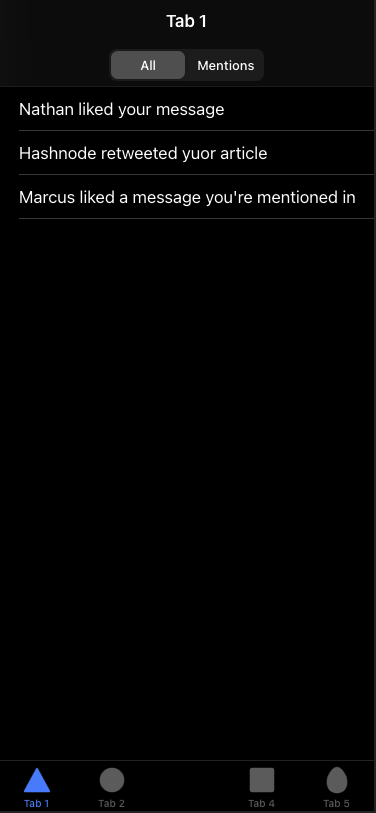
You might think, cool, but we are missing that bottom one! And you're right, so what we'll do is add a FAB button for that.
It will take place outside of our tabs and look like this.
<ion-fab vertical="bottom" horizontal="center" slot="fixed">
  <ion-fab-button>
    <ion-icon name="leaf"></ion-icon>
  </ion-fab-button>
</ion-fab>
And this will give us the following:

Cool and simple right? You can find today's code on GitHub as well!
Thank you for reading, and let's connect!
Thank you for reading my blog. Feel free to subscribe to my email newsletter and connect on Facebook or Twitter
About the author
I'm a full-stack developer from South Africa 🇿🇦. I love writing about JavaScript, HTML and CSS.
Comments
Join the discussionVery helpful! Thanks !
Glad you like it! 🤩
Thank you! 🎉



