
How to test your NPM package locally

We made our very first NPM package, and briefly touched on how to test it locally.
However, I felt this needs some more explanation. As I hit this wall when making my NPM package.
You don't want to be that person pushing new versions just so you're able to test if something works.
And trust me, I did this 🤦♂️.
Link your NPM package locally
The first step is to open a terminal and navigate to your NPM package on your machine.
Now execute the following command in the terminal:
npm link
This command will link this local package to your globally installed packages.
Import the link in a test project
On the other side, we need to link this package to the test project we want to try it out in.
Navigate to the test project and execute the following command.
npm link {package-name}
I named my package npm-calculator, so I have to run:
npm link npm-calculator
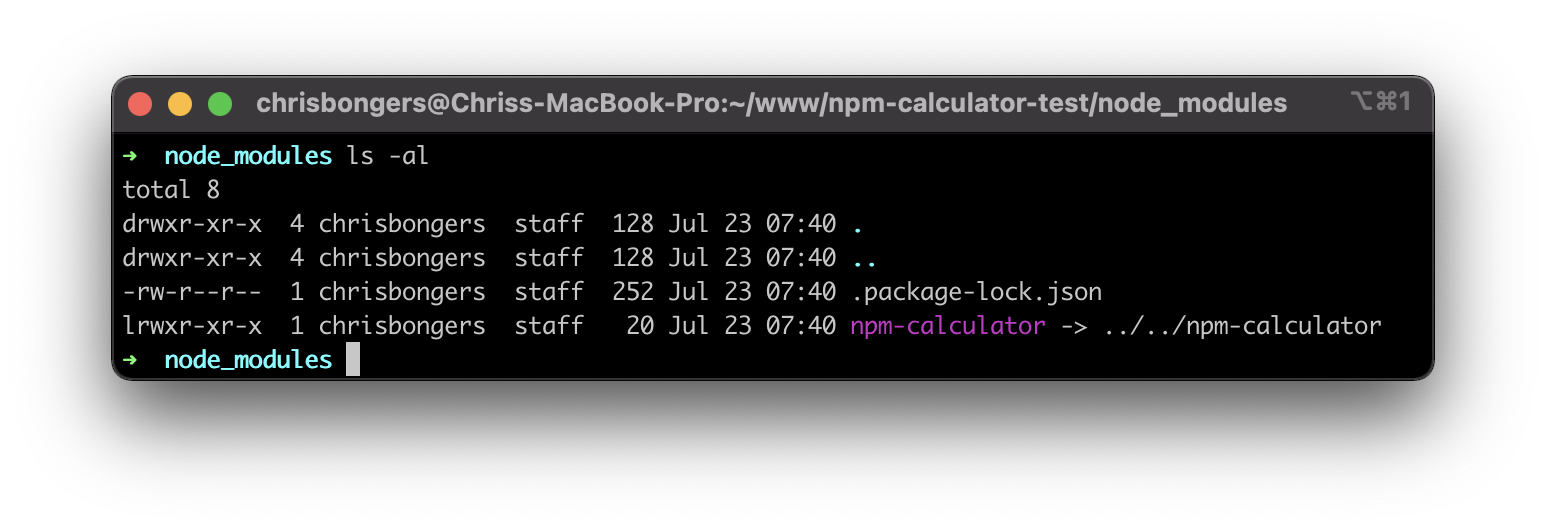
Now, if we look at our node_modules, we can see this is a symlink now!
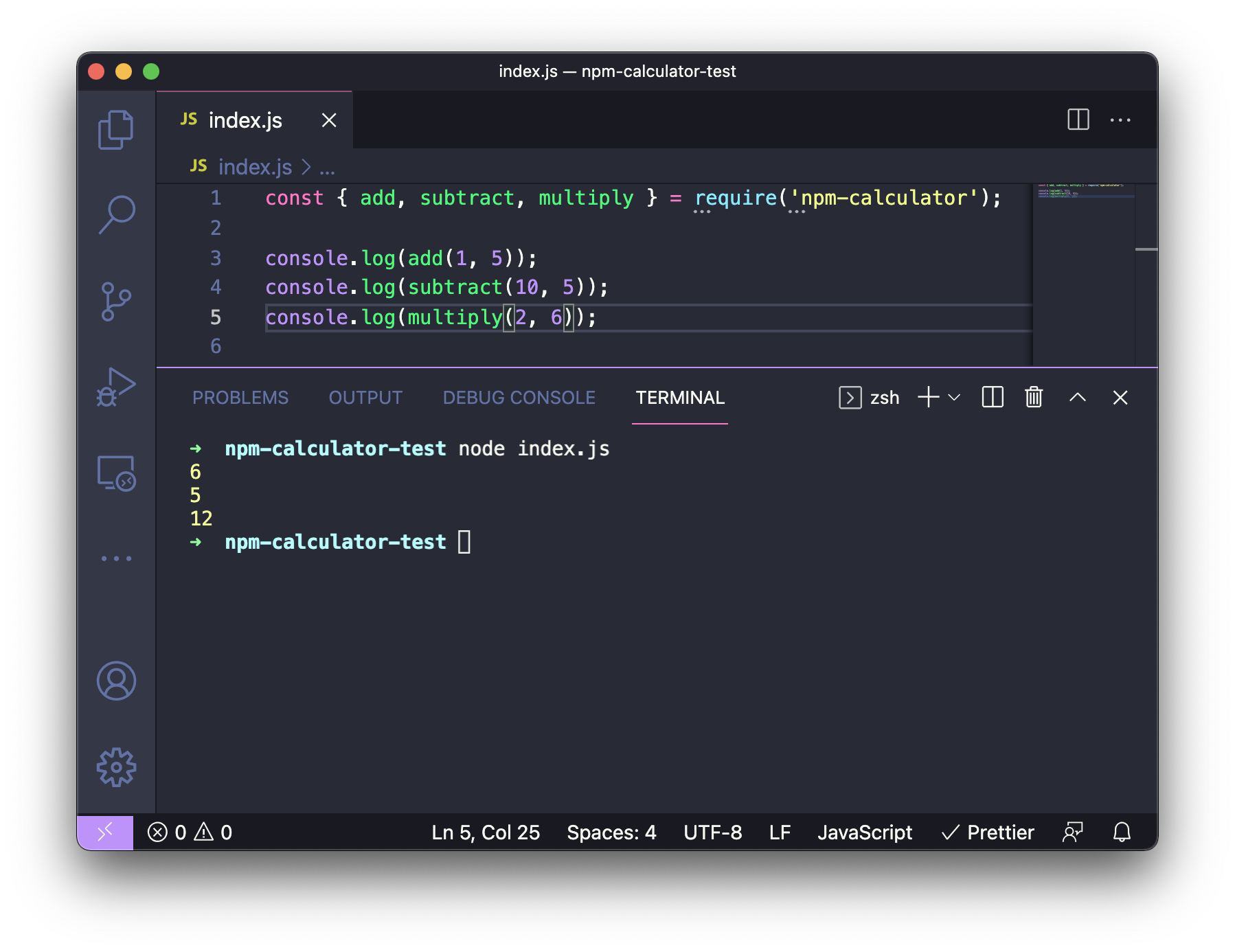
Now let's also actually try if it works. By creating a test index file, we can import our NPM package.
const {add, subtract, multiply} = require('npm-calculator');

console.log(add(1, 5));
console.log(subtract(10, 5));
console.log(multiply(2, 6));
When we run the code now, it works. Our NPM package is loaded and worked locally.
To try this out, edit your NPM package by, for instance, adding a console log. This is just for the sake of testing the local link.
I'll add a log in the add function.
Now without doing anything, head back to your test app and re-run the code.
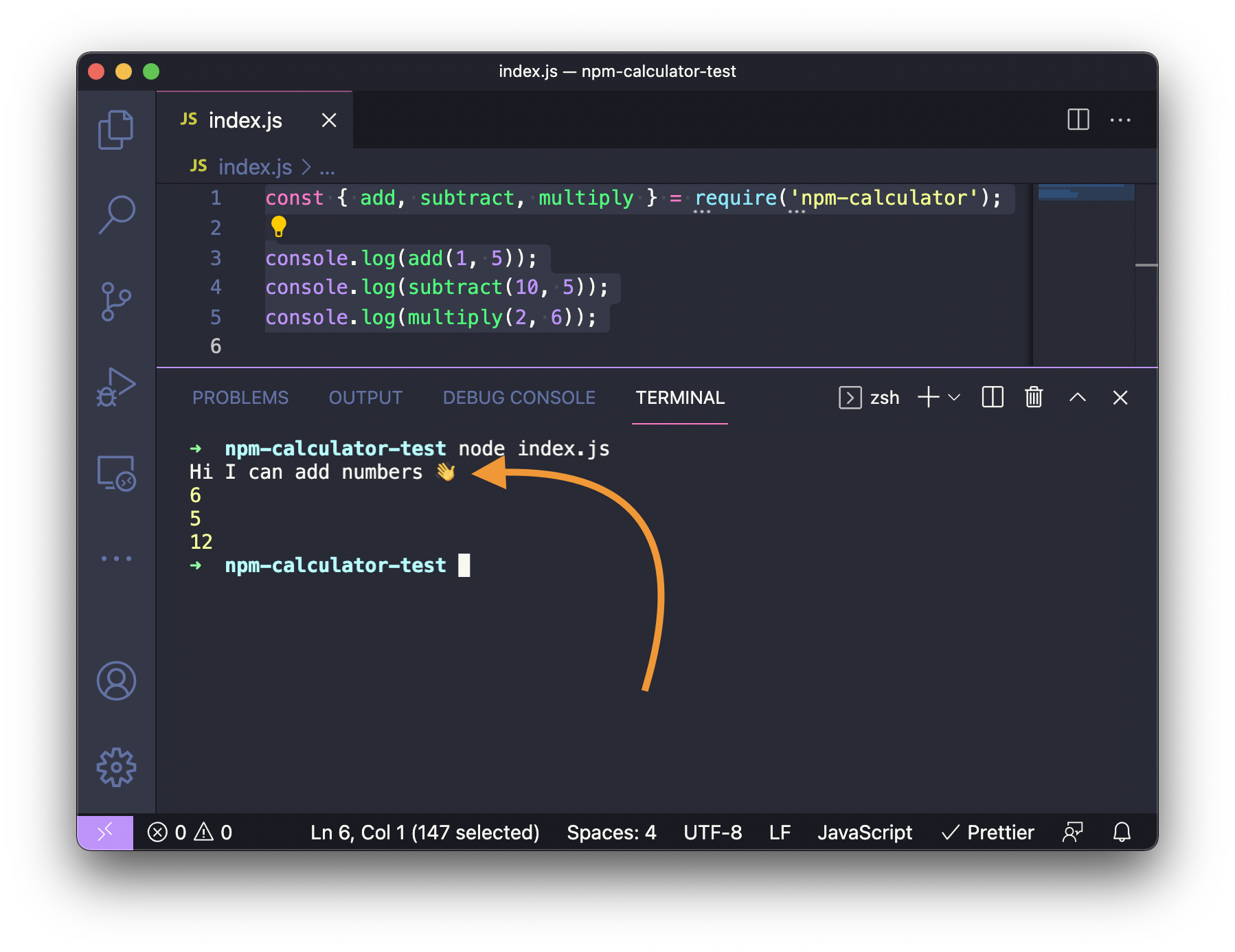
As you can see, our change works right away! This makes for a much quicker development experience. And again, once you're happy with this, you can go ahead and publish your NPM package to the registry.
Thank you for reading, and let's connect!
Thank you for reading my blog. Feel free to subscribe to my email newsletter and connect on Facebook or Twitter
About the author
I'm a full-stack developer from South Africa 🇿🇦. I love writing about JavaScript, HTML and CSS.
Comments
Join the discussionNo comments yet. Be the first to comment.



