
How to password protect zips on Mac 🔑

If you're on Windows, you might think, but why? Well, Mac doesn't offer a GUI interface for password protecting zips.
Yes, bizarre, right?
We can right-click a file/folder and compress it into a zip.
But we can, by using our best friend The Terminal password, protect our zip files!
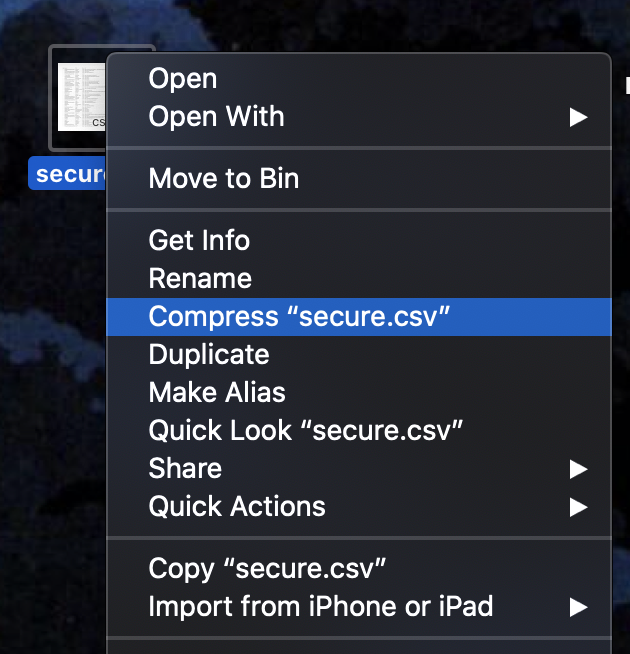
Using terminal to password protect zip files on Mac
So let's open our favourite terminal program (mine is iTerm2) and enter the following command.
zip -er ~/Desktop/super_secure.zip ~/Desktop/secure.csv
The parameters are as follows:
zip- The actual zip command-er- Encrypt Recursive~/Desktop/super_secure.zip- Output zip name~/Desktop/secure.csv- Input file/folder
Once we run this, we get prompted to type a password.
You don't see any input on these password fields!
Press enter, and you need to verify the password.
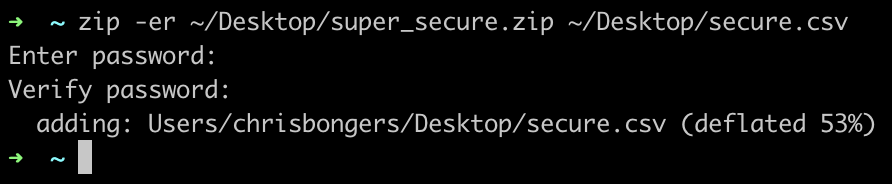
We now created a secure zip.
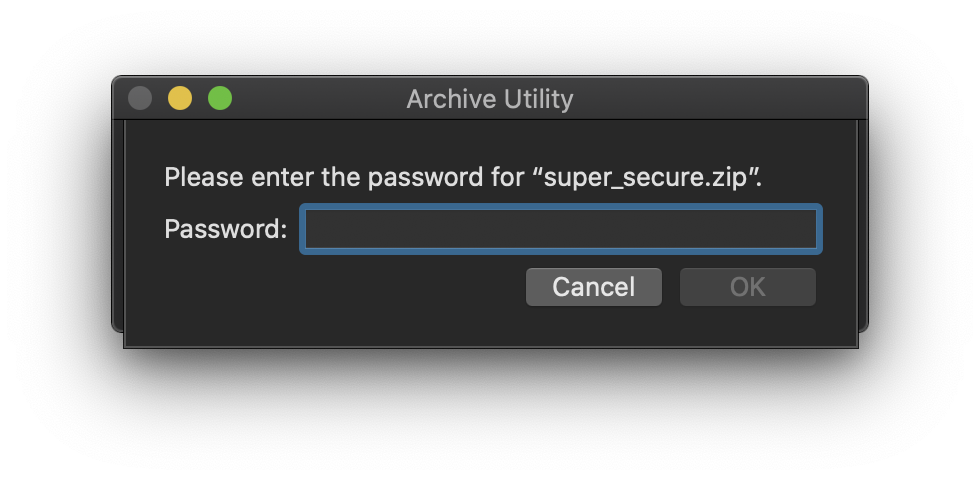
If we try to open this zip, we see the following prompt.
Thank you for reading, and let's connect!
Thank you for reading my blog. Feel free to subscribe to my email newsletter and connect on Facebook or Twitter
About the author
I'm a full-stack developer from South Africa 🇿🇦. I love writing about JavaScript, HTML and CSS.
Comments
Join the discussionNo comments yet. Be the first to comment.



