
Firefox dev tools - Animations

First of all, HAPPY NEW YEAR!

It's been such a crazy year this 2020 thing... Can't even believe it's finally done, but I have a feeling this mayhem is not done.
So let's start the year on a positive note, I found another cool thing in Firefox dev tools, the animation debugger.
It's literally amazing! It can modify, debug, and timeframe animations.
The tool looks like this:
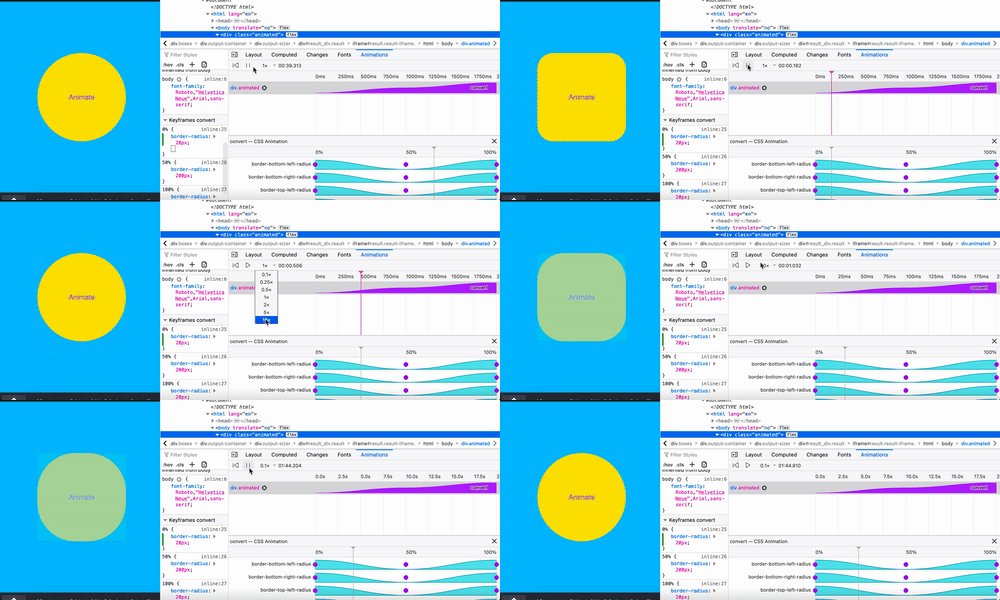
Firefox animation debug tool
To find the animation tool we simply have to open the developer tools:
- Mac:
Shift+⌘+J - Windows/Linux:
Shift+CTRL+J
Then we can inspect an element on the page that has an animation. And open the Animation tab.
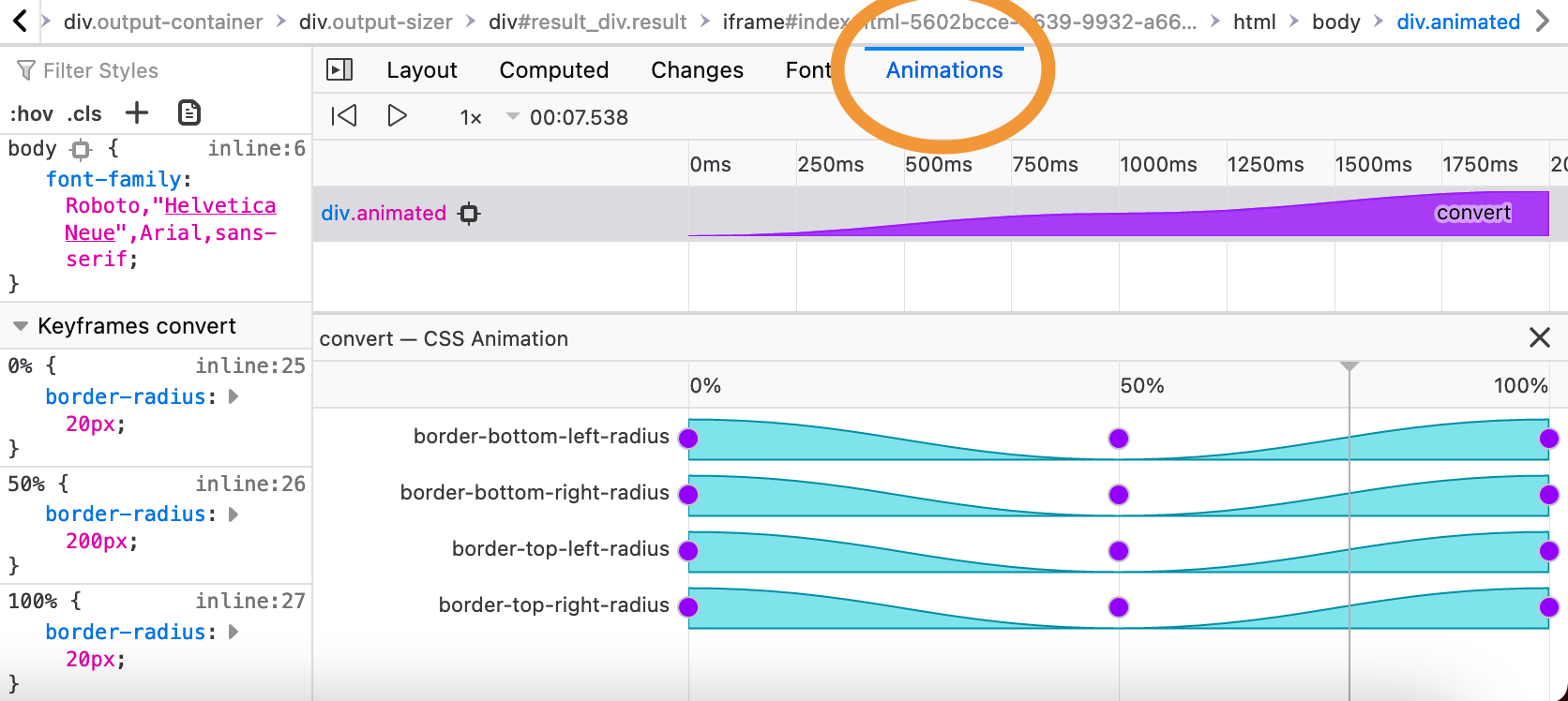
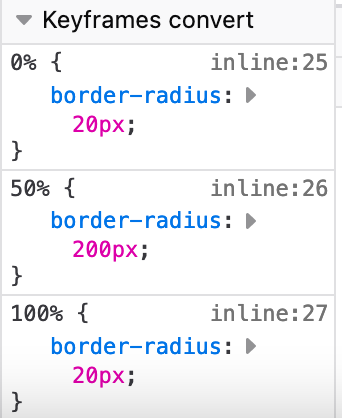
On the left you see the animation in the Keyframe animation in my case it convert a square to a round div, in three steps.
You can use the keyframe section to make modifications to each keyframe.
Then on the right, you will see how long the whole animation takes in the purple bar, in my case 2000ms (2s).

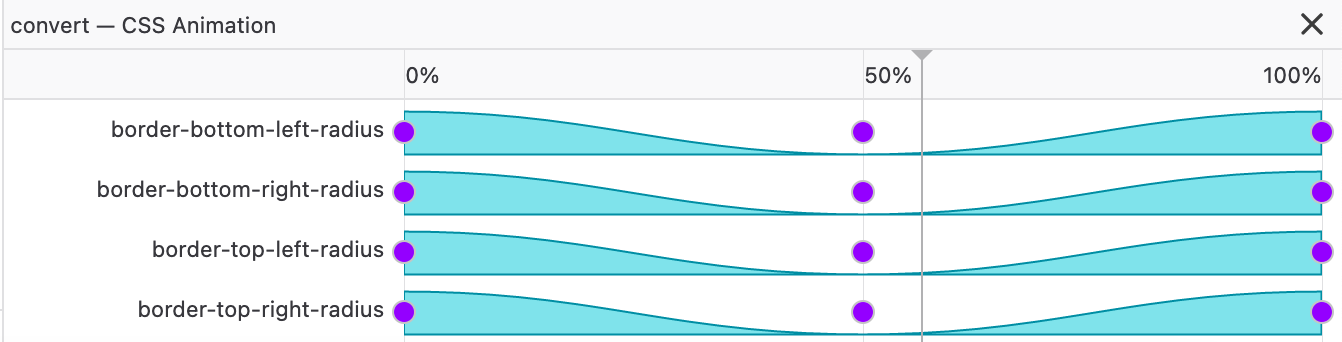
And in the bottom bit, we see the animation flow, you can see I use an ease-in-out so it's a smooth line.
Then on top, we can control the animation to debug it, even more, we can go back to step 0, pause/play, and set the speed.
All and all, it's a super useful tool to debug and work on your animations.
Thank you for reading, and let's connect!
Thank you for reading my blog. Feel free to subscribe to my email newsletter and connect on Facebook or Twitter
About the author
I'm a full-stack developer from South Africa 🇿🇦. I love writing about JavaScript, HTML and CSS.
Comments
Join the discussionNo comments yet. Be the first to comment.



