
Astro recipe collection website - Part 3 Category filter pages

We're making quite a lot of progress on our new Astro recipe website. So far, we have done the following tasks:
And today, we'll be creating specific tag pages. These tag pages will be a helpful overview for people to find the recipe they are looking for.
Some examples of the tag overview pages for our recipe website might be:
meal type: Show me all breakfast recipescourse: I want a list of all saladsdiet: Show me all the vegan recipesmain ingredient: I want to see a list of all Tofu dishes
Creating category filter pages
Let's take a moment and think about the final URL structure we would like to have for the actual filter page.
I would like to have recipes/breakfast and recipes/salads as best for our SEO long run.
Then we might have to go ahead and change our recipes page to be a collection of all the specific categories we have.
In return, we can opt to have the current recipes page on a recipes/all endpoint.
Why would we want to do that? Well, it's our job to help our end client as much as we can. Someone will be looking for a specific recipe and will want to be guided to finding that particular recipe as quickly as possible. So we will try and help them by showing category pages before showing them just all recipes.
Moving the recipe collection to the /all endpoint
Let's first move our existing recipe collection to be on the all URL.
For this to work, we need to create a new folder called recipes. This will be severe as the new recipes structure in our URLs.
Inside this folder, we can create another folder called all and move the old [...page].astro file into this new folder.
Open up this [...page].astro file and change the content fetching to be from one level higher like so:
// before
const allRecipes = Astro.fetchContent('./recipe/*.md');

// after
const allRecipes = Astro.fetchContent('./../../recipe/*.md');
Alright, let's try this out and run our Astro app with npm start.
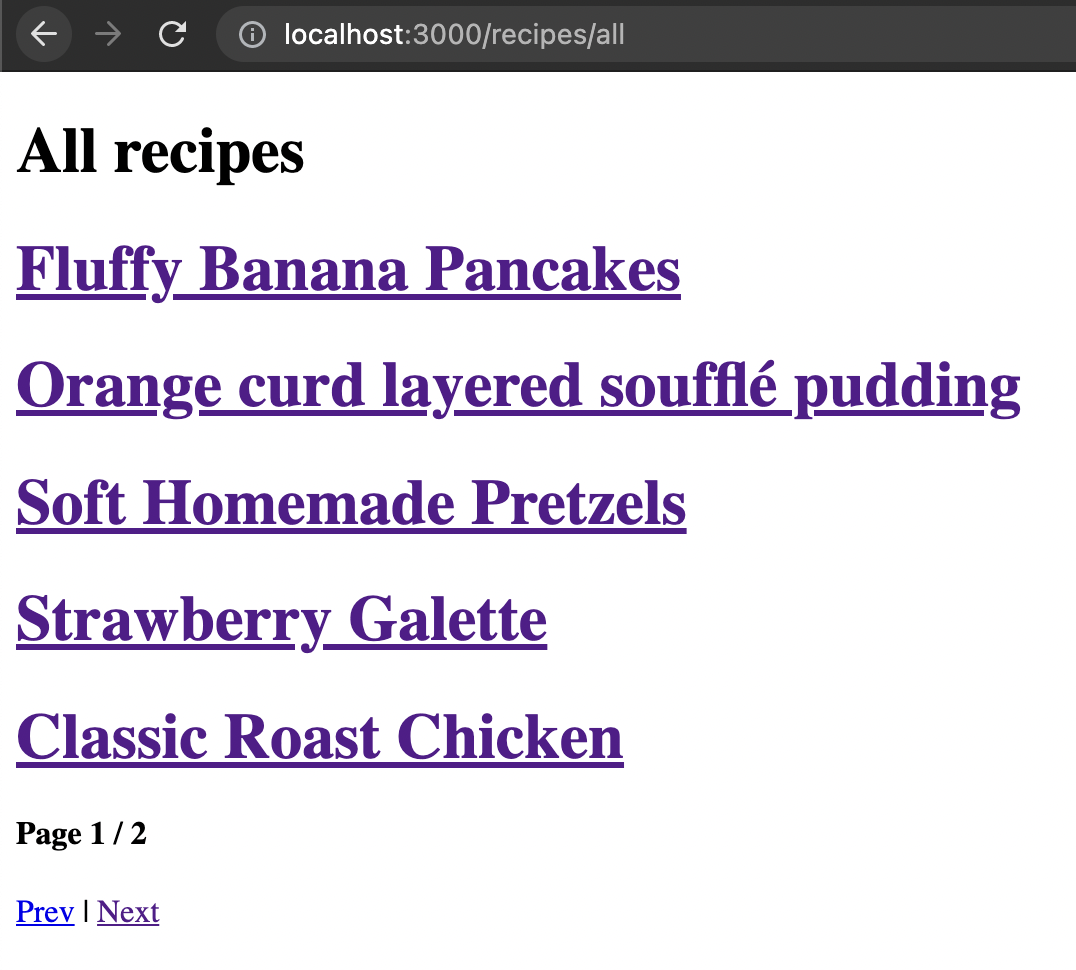
That is step one done.
Creating the specific filter endpoint
Now we want to go ahead and create the specific filter endpoints. This is a bit trickier since we wish the URLs to be on the same level.
Some examples:
/recipes/breakfast/recipes/vegan/recipes/roast/recipes/roast/2/recipes/meat-and-chicken
This is a bit difficult because the filters are unique to use the same key for multiple filters.
Note: Keep an eye out for duplicate key usage in your recipes, as it will overwrite the collections.
We first need to create a [slug] folder inside our recipes folder for this to work. This will serve as the roast part, for instance.
Inside this folder, create a file called [...page].astro as this will serve as our pagination model.
Let's start by defining the code that we can execute in our Frontmatter section.
---
export function getStaticPaths({paginate}) {
  // All our code
}
const { page, filter } = Astro.props;
---
This section now defines our collection, the same standard as we used in our all collection.
Then we need to load all our recipes so we can start filtering on all of them.
const allRecipes = Astro.fetchContent('./../../recipe/*.md');
Then, let's define all the filter keys we have in our markdown file. You might remember we used: meal_type, course, diet, and main_ingredient.
const filterKeys = ['meal_type', 'course', 'diet', 'main_ingredient'];
These keys will be used to get the specific values from each recipe markdown file.
Retrieving all unique filter values
Then let's get all the filter values. Each filter key should become an array of unique values, meaning one recipe can return multiple values.
The output we wish to get will look something like this:
['Dinner', 'Roast', 'Healthy', 'Meat and chicken', 'Breakfast', 'vegan', 'Banana'];
Let's start by breaking this down into smaller steps. Step one is to use the JavaScript reduce function to return an array of strings.
const filter = allRecipes.reduce((curr, recipe) => {
  filterKeys.forEach((key) => {
    if (!recipe[key]) return;
    curr.push(recipe[key]);
  });
  return curr;
}, []);
The reduce function will loop through each of our recipes, and for each record will loop through the filter keys we defined, then we check if that recipe has a value for this key. If not, we return that loop. Else we push the value to our current array.
This whole function will return an array of ALL values, meaning there will be a lot of duplicates, for instance:
['Dinner', 'Roast', 'Healthy', 'Dinner'];
Note: Do you see the double Dinner value?
To filter our unique values, let's leverage the JavaScript Set method.
Simple wrap the previous method in a Set return.
const filter = new Set(
  allRecipes.reduce((curr, recipe) => {
    filterKeys.forEach((key) => {
      if (!recipe[key]) return;
      curr.push(recipe[key]);
    });
    return curr;
  }, [])
);
However, a new problem occurs. This is now a JavaScript Set object, which doesn't work precisely as an array works.
We can use the JavaScript spread operator to convert the set into an array.
const filters = [
  ...new Set(
    allRecipes.reduce((curr, recipe) => {
      filterKeys.forEach((key) => {
        if (!recipe[key]) return;
        curr.push(recipe[key]);
      });
      return curr;
    }, [])
  ),
];
Yes, now we have our unique filter values for all our recipes!
Creating a slugify function
Above, we ensured that we could get an array of unique values; however, we get results like Meat and chicken.
Nothing wrong with meat and chicken, but we can't place that in our URLs.
Instead, we want to get something like: meat-and-chicken.
To achieve that, let's define a slugify function. The function will take a string and return the slug version for that string.
const slugify = (url) =>
  url
    .toLowerCase()
    .replace(/[^a-z0-9 -]/g, '')
    .replace(/\s+/g, '-');
To break this function down, let's see the expanded version with comments.
const slugify = (url) => {
  return url
    .toLowerCase() // Conver to lowercase
    .replace(/[^a-z0-9 -]/g, '') // Remove all special characters
    .replace(/\s+/g, '-'); // Convert spaces to dashes
};
The actual Astro collection code
Right, we have all the elements we need. Let's go ahead and create this collection in Astro.
We need to start by defining a return object in our collection and describe the properties.
return filters.map((filter) => {
  const filteredPosts = allRecipes.filter((recipe) =>
    filterKeys.some((key) => recipe[key] === filter)
  );

  return paginate(filteredPosts, {
    params: {slug: slugify(filter)},
    props: {filter},
    pageSize: 5,
  });
});
A lot is going on there. Let's see what happens per item.
filter.map: We loop over each of our filters to create the slug pages.filteredPosts: These are the posts that match a specific filterpaginate: Enable the pagination for this collectionparams: Add the slug (slugified) for this routeprops: We send the filter as a prop to use in our HTMLpageSize: Show only five items per page
Rendering the results
To use these results, let's add some HTML code to our [...page].astro file below the last --- section.
<html lang="en">
  <head>
    <title>Pagination Example</title>
  </head>
  <body>
    <h1>All {filter} Recipes</h1>
    {page.data.map((recipe) => (
      <a href={recipe.url}>
        <h1>{recipe.title}</h1>
      </a>
    ))}
    <footer>
      <h4>
        Page {page.current} / {page.last}
      </h4>
      <nav class="nav">
        <a class="prev" href={page.url.prev || '#'}>
          Prev
        </a>
        |<a class="next" href={page.url.next || '#'}>
          Next
        </a>
      </nav>
    </footer>
  </body>
</html>
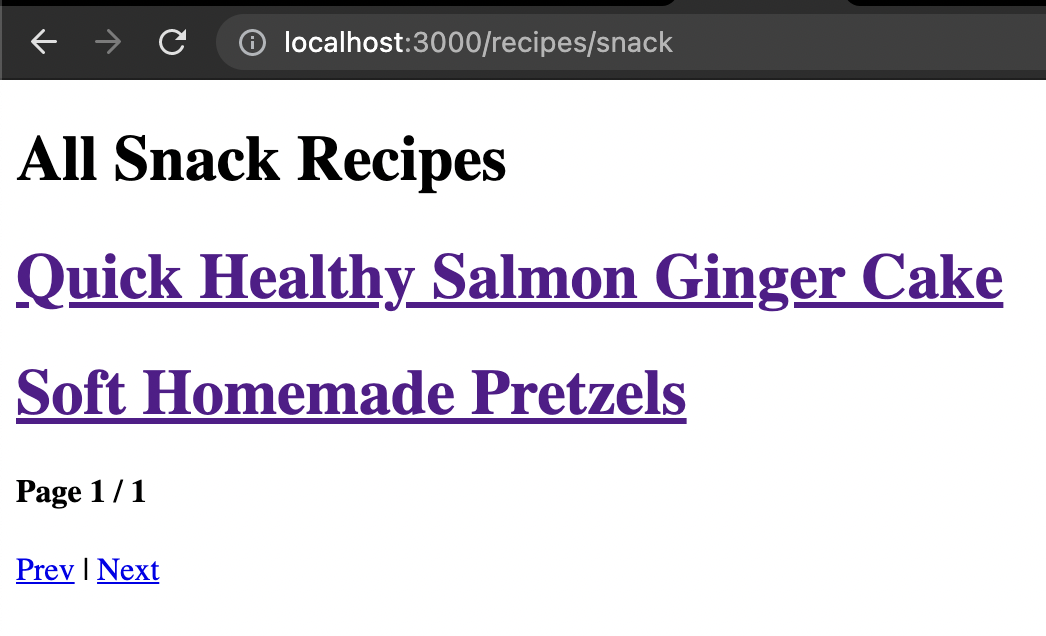
Here you can see that we use the same approach as on the all page.
Which in turn, results in the following:
If you are interested in the complete code example, you can find that on the following GitHub repo.
Thank you for reading, and let's connect!
Thank you for reading my blog. Feel free to subscribe to my email newsletter and connect on Facebook or Twitter
About the author
I'm a full-stack developer from South Africa 🇿🇦. I love writing about JavaScript, HTML and CSS.
Comments
Join the discussionGreat Work
Thanks!



