
Angular search pipe for a list

In today's article, we'll be creating a live-search function for an Angular list.
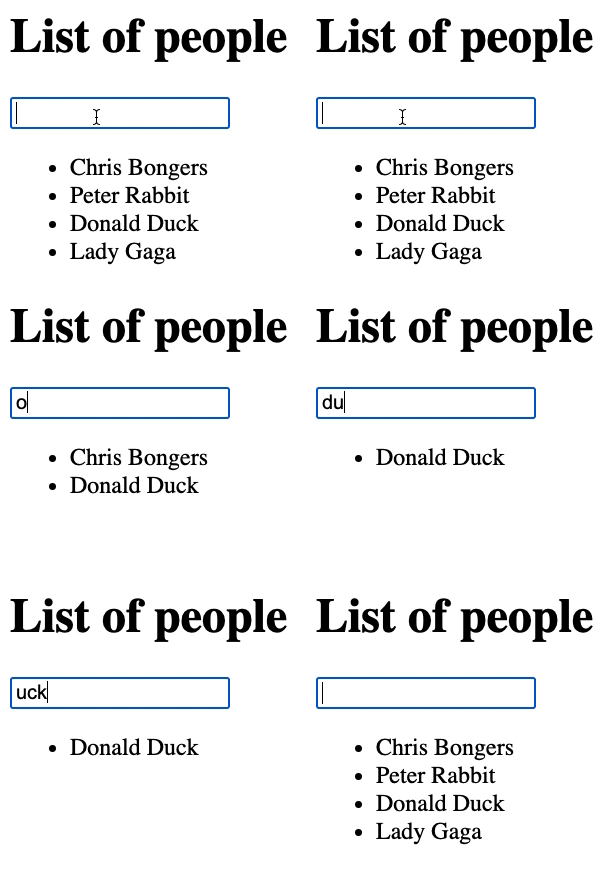
With this, I plan to have a list rendered in Angular and an input type above it. If we type in this input we should see the list contents change.
You can see the end result in this GIF.
Setting up the project
For this project, we will be using my master Angular project, since we don't want to setup Angular from Scratch.
Note: Check out this article if you plan to install Angular from scratch
Download the starter project or install it yourself, then you can open your terminal and run ng serve.
Creating the list
The next part is to create a new component, this is the List component. We can use the Angular generator to create this component for us.
ng generate component list
You can then add this list component to your app.component.html file.
<li><a routerLink="/welcome" routerLinkActive="active">Welcome</a></li>
<li><a routerLink="/list" routerLinkActive="active">List</a></li>
Then we need to active the route in our routing file.
Open up the app-routing.module.ts.
You'll need to import the Component on the top.
import {ListComponent} from './list/list.component';
And add the following line as a route.
{ path: 'list', component: ListComponent },
Now we should be able to run our application and visit the /list route.
The next thing we want to add is our data, so open up the list.component.ts file and add the following data set.
people = [
  {
    firstname: 'Chris',
    lastname: 'Bongers'
  },
  {
    firstname: 'Peter',
    lastname: 'Rabbit'
  },
  {
    firstname: 'Donald',
    lastname: 'Duck'
  },
  {
    firstname: 'Lady',
    lastname: 'Gaga'
  }
];
We want to show this list on the HTML side, so we need to render it in our HTML file.
<ul>
  <li *ngFor="let person of people">
    {{ person.firstname }} {{ person.lastname }}
  </li>
</ul>
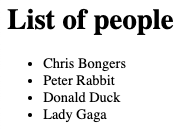
If we run this code, we should see our list rendered.
As mentioned we need to have a search input on top of this list, this needs to be connected to a model so we can use the value.
First, we need to enable the ReactiveForms module.
We can add it in our app.module.ts file.
// Other imports
import { ReactiveFormsModule } from '@angular/forms';

@NgModule({
  declarations: [...],
  imports: [ReactiveFormsModule, ...],
  providers: [],
  bootstrap: [AppComponent],
})
With this in place, we can go ahead and create the form in our list.component.ts.
The first thing we add is a variable for our searchForm.
searchForm;
Then we modify the constructor to load the formBuilder and create the search form.
constructor(private formBuilder: FormBuilder) {
    this.searchForm = this.formBuilder.group({
      search: '',
    });
}
This will create a form we can use in our HTML file.
Add the following form on top of our list.
<form [formGroup]="searchForm">
  <input formControlName="search" />
</form>
Note: The formControlName references the formBuilder group name.
Generating the Angular Search Pipe
To generate this pipe we can run the following command.
ng generate pipe SearchFilter
This will generate and register our pipe for us.
To use this pipe we need to add it to the ngFor on the list we created in list.component.ts.
<li *ngFor="let person of people | searchFilter: searchForm.value.search"></li>
As you can see above we add the searchFilter pipe and pass the argument of the search field value.
Now we need to make sure this searchFilter pipe will return only matching results.
Let's create the outline for this filter first. Our filter has 2 parameters, one being the input (value) and one being the search (string).
We use typescript to define what our value looks like, in this case, it's an array with an object in it.
Then you'll see the : which defines the output for this transform function.
transform(
    value: { firstname: string; lastname: string }[],
    search: string
): { firstname: string; lastname: string }[] {
    //return something
}
Now, let's create the actual function.
We start by checking if the value is set.
if (value) {
  // Do something
}
If we do get a value, we need to create a regular expression to match against based on the search parameter.
const regexp = new RegExp(search, 'i');
Then we also want to get all the property's keys.
const properties = Object.keys(value[0]);
What the above does is getting the keys for the first array element.
// ['firstname', 'lastname'];
Then it's time to return an actual value.
return [
  ...value.filter(item => {
    return properties.some(property => regexp.test(item[property]));
  })
];
This is a bit of a tricky one, we return an array [].
Inside this array, we use the spread operator to get a copy of the value array.
We use the JavaScript filter method to filter the values. Inside the filter, we return a boolean, because we use the JavaScript some method on the property array.
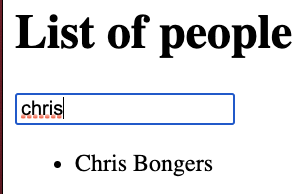
To demo this out what will happen if we search for chris.
We'll get in the loop, and we ask if one of the properties (firstname/lastname) matches the regular expression based on the search string.
In the first case, this is true, so the result will be returned as yes, in the other ones it's false.
The end result is an array of 1 object, being Chris Bongers.
The full search pipe will look as follows.
import {Pipe, PipeTransform} from '@angular/core';
@Pipe({
  name: 'searchFilter'
})
export class SearchFilterPipe implements PipeTransform {
  transform(
    value: {firstname: string, lastname: string}[],
    search: string
  ): {firstname: string, lastname: string}[] {
    if (value) {
      const regexp = new RegExp(search, 'i');
      const properties = Object.keys(value[0]);
      return [
        ...value.filter(item => {
          return properties.some(property => regexp.test(item[property]));
        })
      ];
    }
  }
}
You can also find this project on GitHub.
Thank you for reading, and let's connect!
Thank you for reading my blog. Feel free to subscribe to my email newsletter and connect on Facebook or Twitter
About the author
I'm a full-stack developer from South Africa 🇿🇦. I love writing about JavaScript, HTML and CSS.
Comments
Join the discussionNo comments yet. Be the first to comment.



