
Adding reading time to Astro (the easy way)

You may have noted this blog, along with many others out there, provides reading time.
This reading time is used to indicate how long it would take to read an article.

This is valuable information, as sometimes you want to be aware of what you are getting into while starting to read an article.
Adding a reading time to Astro
We'll be going for the easy way. Meaning it's not a scientific approach and more used as a guideline than a perfect number.
First of all, let's take the Astro blog starter and work from there.
Install the starter template with the following command.
mkdir astro-blog && cd astro-blog
npm init astro -- --template blog-multiple-authors
We'll be adding our reading time script on the post overview page so the visitor can determine which article they want to read.
First, let's create the file that will determine the actual reading time for us.
I created a lib folder in the src directory for these little scripts, creating a readingtime.js file.
Then add the following template, which creates a function that accepts content and should return the reading time.
export function getReadingTime(content) {
  if (!content) return;
  // Do something
}
Now open up the components/PostPreview.astro and import this script like so:
---
import { getReadingTime } from '../lib/readingtime.js'

// Rest of frontmatter
---
And in our HTML section we can use it like so:
<p>{getReadingTime(post.astro.html)} minutes to read</p>
We invoke the function and pass the HTML of the post content. However, nothing will happen at this point.
So head back over to the readingtime.js file.
The first thing we need to do is determine what the average person reads per minute.
This is widely known to be between 200/250 words, so let's stick to the lower number.
Read more on the number of words read per minute
With this in mind, we can create a variable that states this number.
const WORDS_PER_MINUTE = 200;
The content we pass is pure HTML, including all kinds of HTML tags, images, etc., which we don't want to count towards the reading time.
We can't use document manipulation in Astro, so let's use a regex to remove these elements.
export function getReadingTime(content) {
  if (!content) return;
  const clean = content.replace(/<\/?[^>]+(>|$)/g, '');
}
Then we can extract the number of words from our cleaned string by splitting it into spaces.
const numberOfWords = clean.split(/\s/g).length;
Lastly, we can divide the number of words by our word per minute variable and round this up.
Making the function look like this:
const WORDS_PER_MINUTE = 200;

export function getReadingTime(content) {
  if (!content) return;
  const clean = content.replace(/<\/?[^>]+(>|$)/g, '');
  const numberOfWords = clean.split(/\s/g).length;
  return Math.ceil(numberOfWords / WORDS_PER_MINUTE);
}
If we now go to our website, we should see the reading times pop-up.
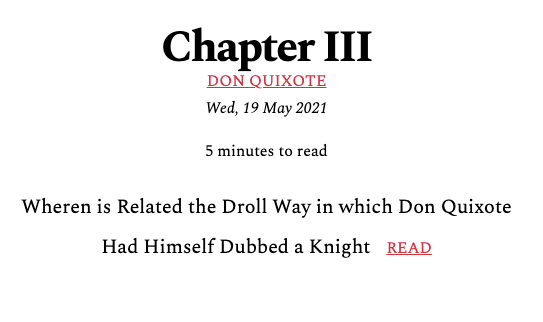
You can also find the completed code example on GitHub for reference purposes.
Thank you for reading, and let's connect!
Thank you for reading my blog. Feel free to subscribe to my email newsletter and connect on Facebook or Twitter
About the author
I'm a full-stack developer from South Africa 🇿🇦. I love writing about JavaScript, HTML and CSS.
Comments
Join the discussionNo comments yet. Be the first to comment.



