# Creating individual markdown blog pages - part 13
In the previous article, we changed our [blog post to be loaded from local markdown files](https://daily-dev-tips.com/posts/loading-local-markdown-blog-posts-part-12/).
With that in place, we can start creating individual markdown-powered blog posts!
If you want to follow this article, use the [following branch](https://github.com/rebelchris/next-portfolio/tree/part-12) as your starting point.
## Creating individual blog pages
In the blog overview, we set the URL to individual pages as `/blog/${slug}`, where the slug would be the file's name.
We can start by creating a dynamic page in our `blog` pages directory.
We can call this file `[slug].js`. This dynamic format in Next.js allows random slugs to be valid files.
This file will need to use both the `getStaticPaths` and the `getStaticProps` functions. This is what they do:
- `getStaticPaths`: Create all possible slug options for each post
- `getStaticProps`: Get the actively requested page with more details for this specific article
So the first one is to generate all the available blog posts as a valid option, and the second is to fetch the details for this blog.
The structure of the file will look like this:
```js
export async function getStaticPaths() {}
export async function getStaticProps({ params: { slug } }) {}
export default function PostPage({ frontmatter, content }) {}
```
Let's start by creating the static paths function.
```js
import fs from 'fs';
export async function getStaticPaths() {
const files = fs.readdirSync('./posts');
const paths = files.map((fileName) => ({
params: {
slug: fileName.replace('.md', ''),
},
}));
return {
paths,
fallback: false,
};
}
```
As with the blog overview page, we need to read all our files from the posts directory.
We then map them with their filenames, which means a path with the slug will be valid for each file.
With the individual request, we need to extract both the frontmatter parts and the page's actual content.
```js
import fs from 'fs';
import matter from 'gray-matter';
export async function getStaticProps({ params: { slug } }) {
const fileName = fs.readFileSync(`./posts/${slug}.md`, 'utf-8');
const { data: frontmatter, content } = matter(fileName);
return {
props: {
frontmatter,
content,
},
};
}
```
Now we can adjust our render function to return the content for the requested file.
```js
export default function PostPage({ frontmatter, content }) {
return (
{frontmatter.title}
{content}
);
}
```
Let's take a look at how this renders now.
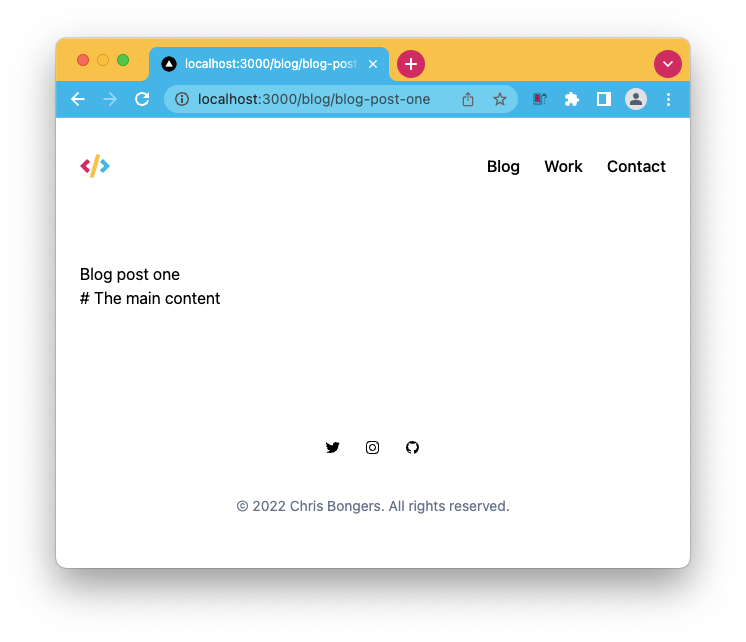
So it looks like everything is there, but we see two issues.
- The markdown is not rendering as HTML
- The page doesn't apply any styling
For the first part, we can leverage a pretty cool NPM package that will convert markdown into HTML.
Start by installing the package.
```bash
npm install markdown-it
```
Now import this package on the `[slug].js` page and set the content to render.
```js
import md from 'markdown-it';
export default function PostPage({ frontmatter, content }) {
return (
);
}
```
We have to use the `dangerouslySetInnerHTML` function. However, since we own the content on the server, this is safe enough.
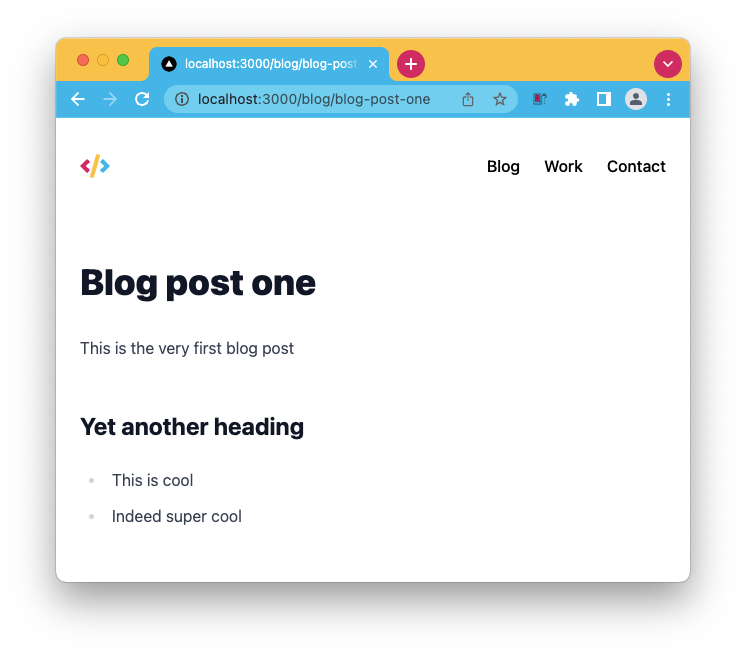
If now refresh, we can see the `#` is rendering as a heading, but it still all looks the same.
And luckily for us, there is a Tailwind plugin to handle auto styling for us. This means we don't have to go and add classes to each element.
Install the plugin first:
```bash
npm install -D @tailwindcss/typography
```
Then open the `tailwind.config.js` file and add the plugin:
```js
plugins: [require('@tailwindcss/typography')];
```
Restart the server and open the page again!
You should now see a styled website, go ahead and add some markdown to the page to see it work.
You can also find the completed code for this article on [GitHub](https://github.com/rebelchris/next-portfolio/tree/part-13).
### Thank you for reading, and let's connect!
Thank you for reading my blog. Feel free to subscribe to my email newsletter and connect on [Facebook](https://www.facebook.com/DailyDevTipsBlog) or [Twitter](https://twitter.com/DailyDevTips1)